Prerequisites:
In this article we would assume that you have the latest installation/setup of :
- JDK 1.7 - JAVA_HOME environment variable points to the installation
- JBoss EAP 6 or AS7 installed - $EAP_HOME environment variable maps to the folder jboss-eap-6.X
Since I am using Windows, below is how the environment variables are configured on my system:
C:\>echo %JAVA_HOME%
C:\Java\jdk1.7.0_25

C:\>echo %EAP_HOME%
C:\EAP-6.1.0\jboss-eap-6.1
For the sake of simplicity we would also assume that you have started the out-of-the-box EAP/AS server in standalone mode
C:\Users\VijayBhaskar>cd %EAP_HOME%
C:\EAP-6.1.0\jboss-eap-6.1>cd bin
C:\EAP-6.1.0\jboss-eap-6.1\bin>standalone.bat
If the link http://localhost:9990 brings up a login window we are ready to go ...
Using JBoss EAP/AS provided JConsole
The EAP/AS packaged JConsole lets us use all the features of the JDK provided JConsole and in addition you will be provided the JBoss CLI (Command Line Interface) as the last tab of the console to manipulate the runtime settings of the server. So, follow the instructions below to be access the JBoss CLI as well thru JConsole.
===Note === For this to work correctly ensure the following:- There aren't any spaces in the path pointed to by the JAVA_HOME variable, as this variable is later used in the script jconsole.bat in the lines containing %EAP_HOME%\bin
- When using jconsole locally, I had previously run into a situation when the server was started as SYSTEM user and opening the JConsole as any other user wouldn't list the JBoss Server process and its PID. "Both JConsole and the application must by executed by the same user. The management and monitoring system uses the operating system's file permissions", according to official documentation of JConsole.
Open up the JConsole provided with the EAP/AS installation as shown below
C:\>cd %EAP_HOME%\bin
C:\EAP-6.1.0\jboss-eap-6.1\bin>jconsole.bat
Local Process Connection - Simplest Way
The simplest way to get into the guts of the JBoss server's MBeanServer is to select the Local Process in the New Connection window and double-click on the line item that starts with jboss-modules. You would go for this option if you are logged on the machine running the standalone server
 |
| EAP/AS provided jconsole window |
Remote Process Connection - The Other Way
The other way to to provide a URL for the remote process of the form: service:jmx:remoting-jmx://{host_name}:{port}.
You would choose this option if the server was started on a remote machine such that the management port binds to the remote IP (that is pingable from the machine where you are running JConsole from).
You may use the command : telnet IP PORT to verify reachability from the host running JConsole .
In the example below the management port of the remote server is bound to the IP address: 192.168.1.20
C:\EAP-6.1.0\jboss-eap-6.1\bin>standalone.bat --server-config=standalone-full-ha.xml -b 192.168.1.20 -Djboss.bind.address.management=192.168.1.20
The following image displays such a usage:

Using the Oracle JDK provided JConsole/JVisualVM
Oracle JDK provided JConsole
The behavior of directly using jconsole.exe provided by Oracle JDK, is very similar to its working described above when used with wrapper jconsole.bat.
Since we are not adding additional JBoss specific JARs to the classpath before launching it:
- You can connect to the server's MBeans only when the jconsole.exe is run on the same physical host as that of the standalone server
- We miss the JBoss CLI functionality. You can rely on the jboss-as mbeans exposed in the last tab for many of the attributes/operations you might be interested in executing against the server.
C:\>cd %JAVA_HOME%\bin
C:\Java\jdk1.7.0_25\bin>jconsole.exe
Oracle JDK provided jvisualvm
The behavior of Oracle's jvisualvm is similar to jconsole's when used directly and without adding the jars required by the remoting-jmx to the classpath. That is:
- To be able to connect to server's MBeans it has to run local to the server
- No JBoss CLI functionality
If however, there is an existing JBoss EAP/AS installation we could leverage it and make JMX connections :
- Locally and Remotely
- With JBoss CLI functionality
- Copy the jconsole.bat in the %EAP_HOME%\bin into the same folder and call it jvisualvm.bat
- Edit the line that launches jconsole.exe and rename it
jvisualvm.exe, as shown below
// Before
"%JAVA_HOME%\bin\jconsole.exe" -J"-Djava.class.path=%CLASSPATH%"

// After
"%JAVA_HOME%\bin\jvisualvm.exe" "-cp:a" "%CLASSPATH%"
- Run the batch file jvisualvm.bat at command prompt
- Right click on the Remote and add the remote IP and optionally give it a name
- Now right-click on the new entry under Remote and choose Add JMX Connection
- In the new dialog box provide the connection in the form: service:jmx:remoting-jmx://{host_name}:{port}
- Before choosing Ok, provide the username and password for the connection as the remote JMX connection is secure by default
Following images should help with running jvisualvm:
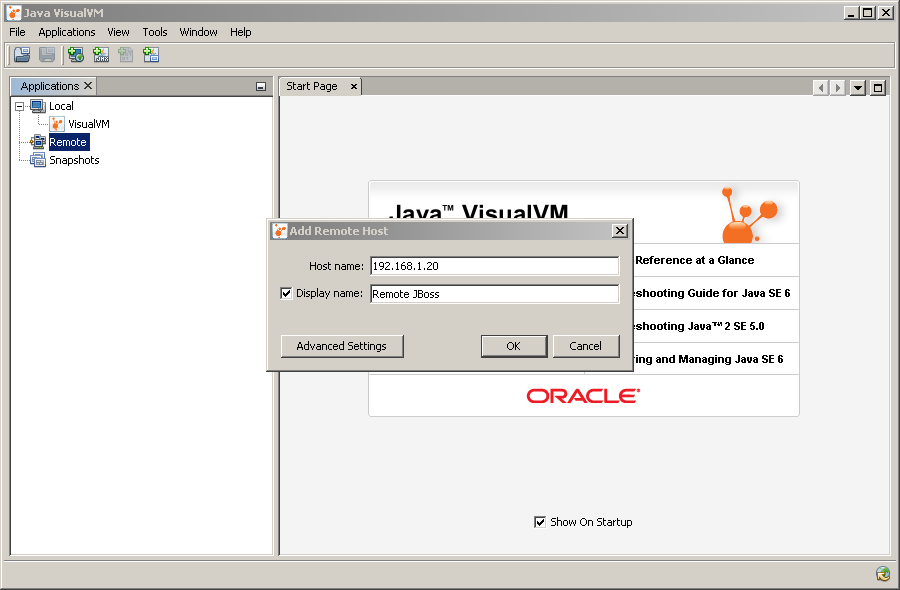 |
| Adding a remote host to jvisualvm |
 |
| Adding a VM to monitor on the host |
 |
| Properties of remote VM when connected |
